
How to Check Your VRAM for AI (Windows & Mac)
Before running Ollama or Llama 4 locally, you need to know your VRAM. Here's a simple, visual guide to finding your GPU's VRAM on Windows and macOS.

When you start researching how to run AI models on your own computer, you’ll constantly hear people talking about VRAM.
"Does your GPU have enough VRAM?" "You need 16GB of VRAM to run that model."
If you’re not a hardcore PC gamer or video editor, you might be wondering: What is VRAM, and how do I know if I have enough?
In this comprehensive guide, we'll explain exactly what VRAM is in simple terms, why AI needs so much of it, and show you exactly where to find it on both Windows and Mac computers.
What is VRAM vs. Normal RAM?
Every computer has memory, but not all memory is created equal.
Normal RAM (Random Access Memory) is the short-term memory for your computer’s processor (CPU). When you have 50 Chrome tabs open or you're running heavy spreadsheet software, your computer is using RAM to keep all that data ready to access instantly.
VRAM (Video Random Access Memory) is memory specifically dedicated to your Graphics Processing Unit (GPU). Normally, VRAM is used for rendering intensive 3D graphics in video games or processing dense 4K video timelines.
Why Does AI Care About VRAM?
AI relies heavily on math. Specifically, massive, parallel matrix multiplications.
Your regular processor (CPU) is like a single hyper-intelligent professor tackling one complex problem at a time. Your GPU, on the other hand, is like 10,000 average students all solving 10,000 simple math problems simultaneously.
Because AI models are basically giant webs of interconnected numbers (called parameters), they run much faster on GPUs.
But to run an AI model on a GPU, the entire model must be loaded into the GPU's memory (VRAM). If an AI model is 10GB in size, and your graphics card only has 8GB of VRAM, the model simply won’t fit. It will crash, or your computer will try to use normal system RAM instead, which slows the AI down so much that it becomes unusable.
How to Check VRAM on Windows 11
Windows makes checking your VRAM very simple using the built-in Task Manager.
Step-by-Step Instructions:
- Right-click on your Start Menu button.
- Select Task Manager from the menu that appears (or press
Ctrl + Shift + Esc). - If Task Manager opens in a small window, click the "More details" arrow at the bottom.
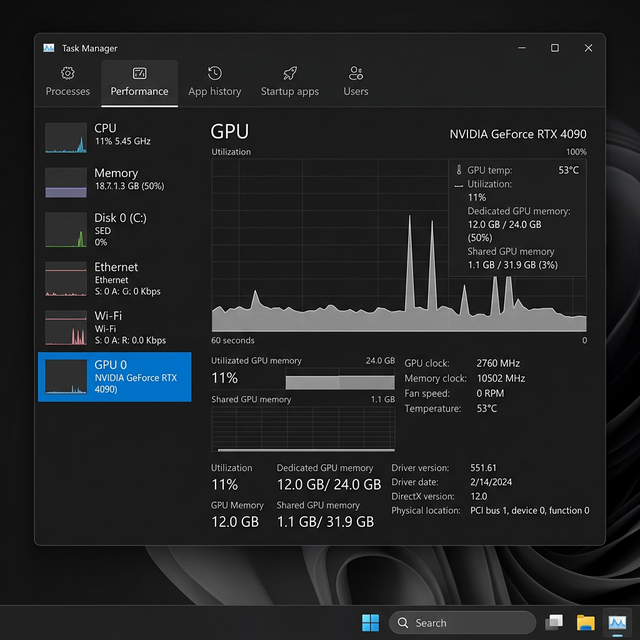
- On the left sidebar, click the Performance tab (the icon looks like a small zigzag graph).
- Scroll down in the left sidebar and look for GPU 0 and/or GPU 1. Click on it.
- Look at the bottom right corner of the window for Dedicated GPU Memory.
This number is your VRAM.
Understanding What You're Seeing
- GPU 0 vs GPU 1: Many laptops have two graphics processing units. Usually, "GPU 0" is a weak, integrated chip used for basic web browsing to save battery. "GPU 1" is your powerful, dedicated NVIDIA or AMD graphics card. Always click on the dedicated card.
- Dedicated GPU Memory: This is your physical VRAM. If it says
12.0 GB, your graphics card has 12 GB of VRAM. - Shared GPU Memory: This is normal system RAM that Windows can "loan" to the graphics card if it gets desperate. For running AI models, ignore this number. AI models run poorly on shared memory. Rely only on your Dedicated GPU memory.
How to Check "VRAM" on a Mac
If you own an Apple Silicon Mac (any model with an M1, M2, M3, or M4 chip), the concept of VRAM works entirely differently than it does on Windows.
Apple Silicon uses an architecture called Unified Memory.
This means the CPU and the GPU are built onto the exact same physical chip, and they share the exact same pool of memory. You do not have a separate "Dedicated GPU Memory" number. Your system memory is your VRAM.
This is actually a massive advantage for running AI locally. An M3 Max MacBook with 64GB of memory can give the GPU access to nearly all 64GBs to run massive AI models—something that would require spending $5,000+ on dual-graphics cards in a Windows desktop.
Step-by-Step Instructions:
- Click the Apple Logo () in the top-left corner of your screen.
- Click About This Mac.
- A small window will appear. Look for the line labeled Memory.
This number is your total Unified Memory (and effectively, your VRAM ceiling).
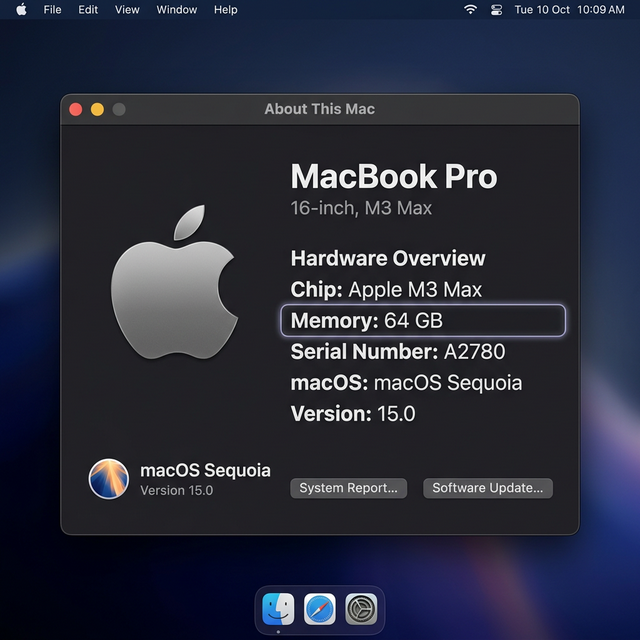
Important Note: macOS reserves some memory for the operating system to function. You can typically use about 70-80% of your total Unified Memory for running AI models. If you have a 32GB Mac, you can comfortably run AI models that require up to 24GB of VRAM.
The VRAM Cheat Sheet: What Models Can You Run?
Once you know your VRAM, you can figure out exactly which local AI models you can run properly. In 2026, here is the standard hardware matrix:
| Your VRAM / Memory | What Models Can You Comfortably Run? | Example AI Models |
|---|---|---|
| 8 GB | Small, fast models | Mistral Small (8B), Llama 3 (8B) |
| 16 GB | Highly capable models | Llama 4 Scout (17B) |
| 24 GB | Large, complex models | Mixtral (8x7B MoE), Command R |
| 48-64 GB+ | Enterprise-grade models | Llama 4 Maverick, DeepSeek |
Next Steps
Now that you know exactly what your machine is capable of, it's time to actually build something.
- Learn the Basics: Check out our guide on Terminal for Absolute Beginners to learn how to open a command line context window and download your first AI framework.
- Build an Agent: Read the Ultimate Openclaw AI User Guide to learn how to build secure, locally-hosted AI agents right on your hard drive.
- Find a Project: Explore 5 AI Side Hustles That Are Actually Working in 2026 to figure out how to monetize your new local AI setup.
If you don't have enough VRAM, don't worry. You can always use cloud APIs (like OpenAI or Anthropic) instead of running models locally!
Frequently Asked Questions (FAQ)
What is shared GPU memory?
Shared GPU memory is regular system RAM that your computer's operating system allows your graphics card to borrow when it runs out of dedicated VRAM. However, for running AI models locally, shared memory is far too slow. Always look at your dedicated GPU memory when checking if you can run a specific AI model.
Why does my dedicated GPU memory say 0 GB?
If your Windows Task Manager shows 0 GB of dedicated GPU memory, it means you likely have an "integrated GPU" (a graphics processor built directly into your CPU without its own memory) and lack a dedicated graphics card like an NVIDIA RTX or AMD Radeon. You will struggle to run local AI models efficiently.
Is VRAM the same as RAM?
No. Regular RAM (Random Access Memory) is general-purpose short-term memory used by your computer's central processor (CPU). VRAM (Video RAM) is specialized, hyper-fast memory physically located on your graphics card (GPU). AI models specifically require VRAM to process massive parallel calculations quickly.
Get the Blueprint: Want to launch a profitable AI business from scratch? Grab The Ultimate AI Toolkit ($19) — a 200+ page framework featuring exact implementation steps for content automation, consulting, and AI agency building.

Alex the Engineer
•Founder & AI ArchitectSenior software engineer turned AI Agency owner. I build massive, scalable AI workflows and share the exact blueprints, financial models, and code I use to generate automated revenue in 2026.
Related Articles

How to Start an AI-Assisted Resume Writing Side Hustle in 2026 (Beginner's Guide)
A step-by-step guide to using AI resume tools to offer a paid resume and cover letter writing service — what to charge, which tools to use, and how to find your first clients.

How to Build and Sell AI Voice Receptionists to Local Businesses in 2026
A beginner's guide to building AI voice agents that answer business phone calls — the tools to use, what to charge, and how to find your first client.

How to Make Money on Fiverr with AI Tools in 2026: 7 Gigs You Can Start This Week
Discover 7 real Fiverr gigs you can launch using free and low-cost AI tools in 2026 — no experience required. Real pricing data, step-by-step setup, and tools that actually work.